


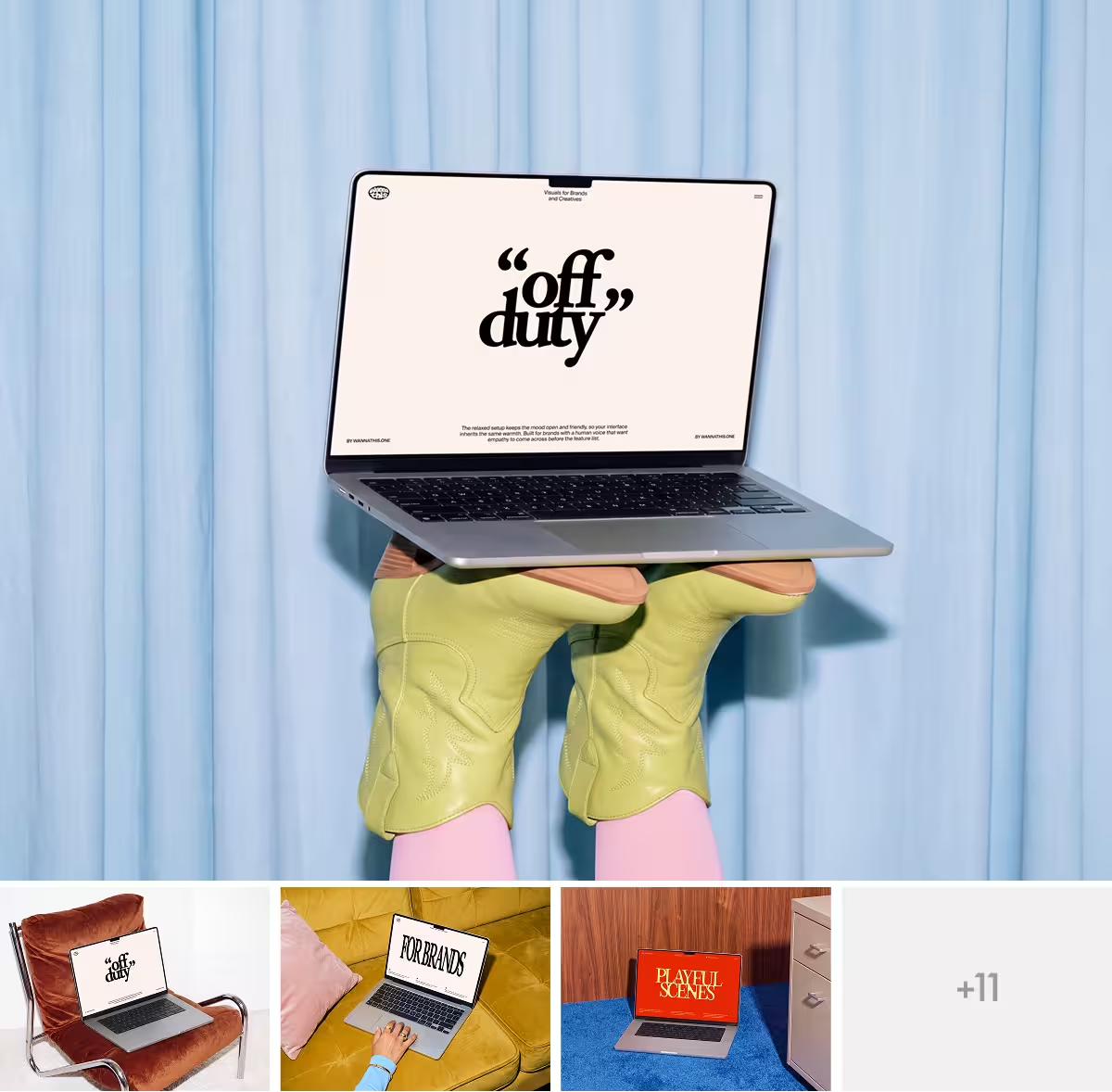
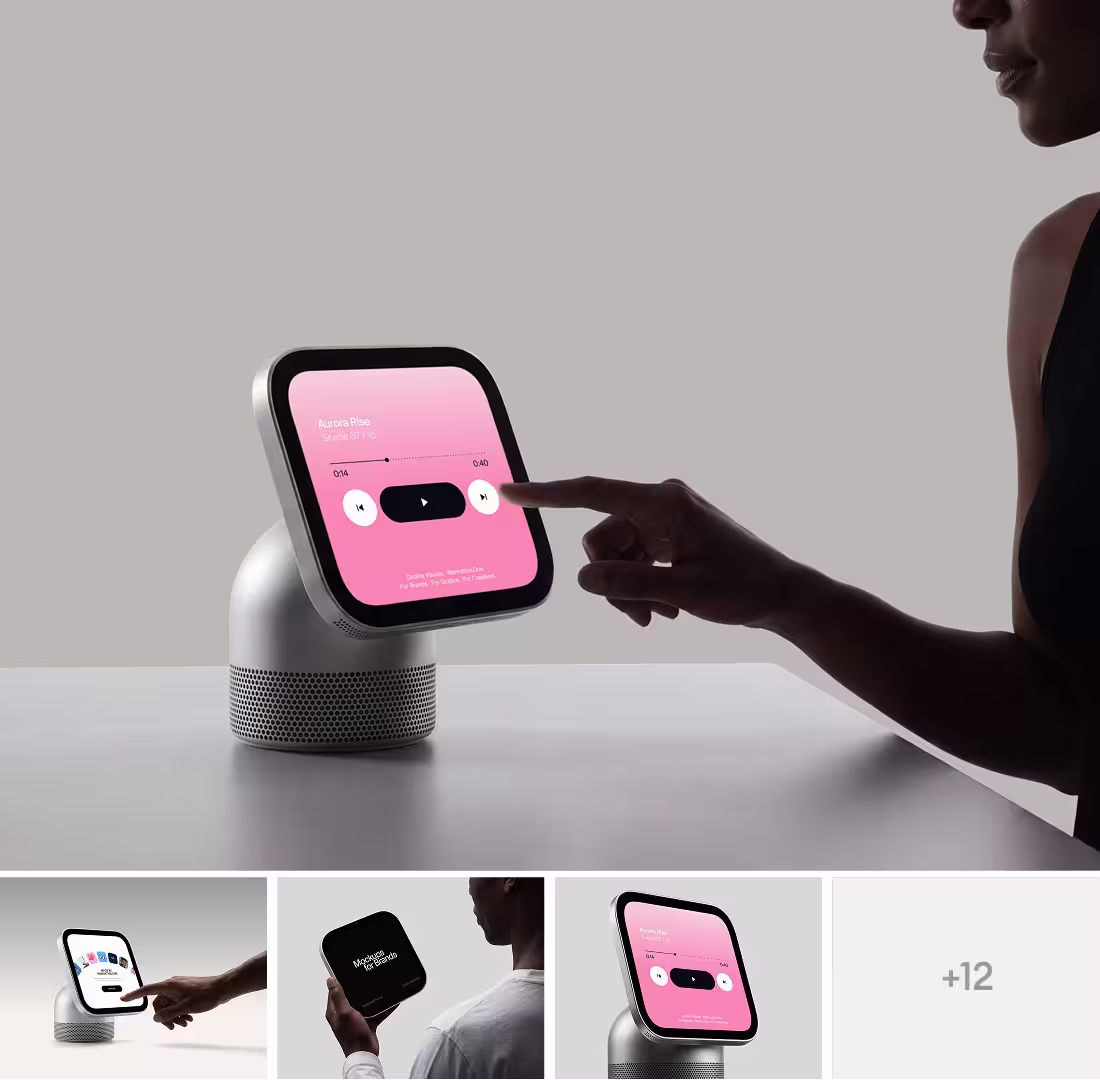
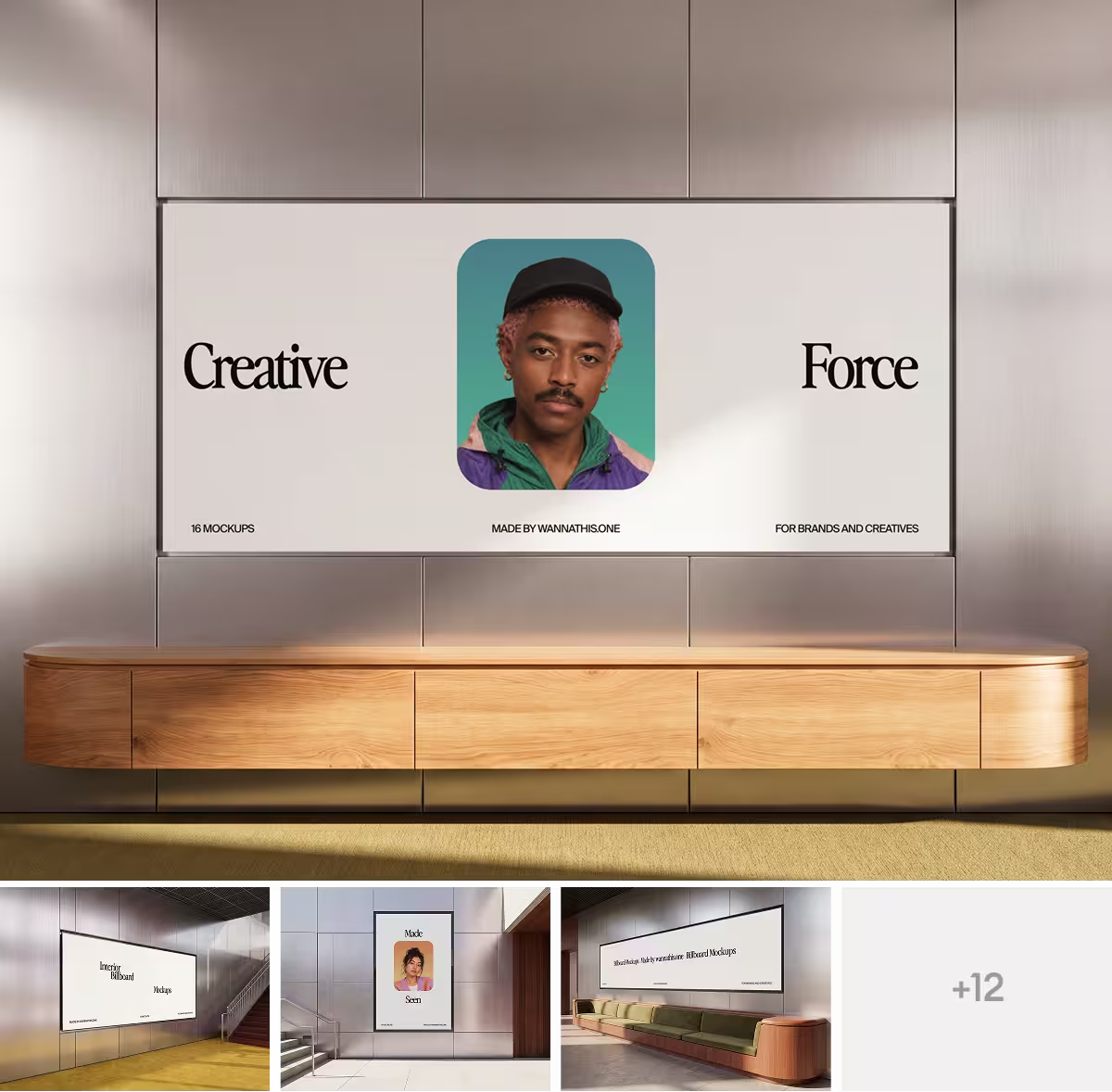
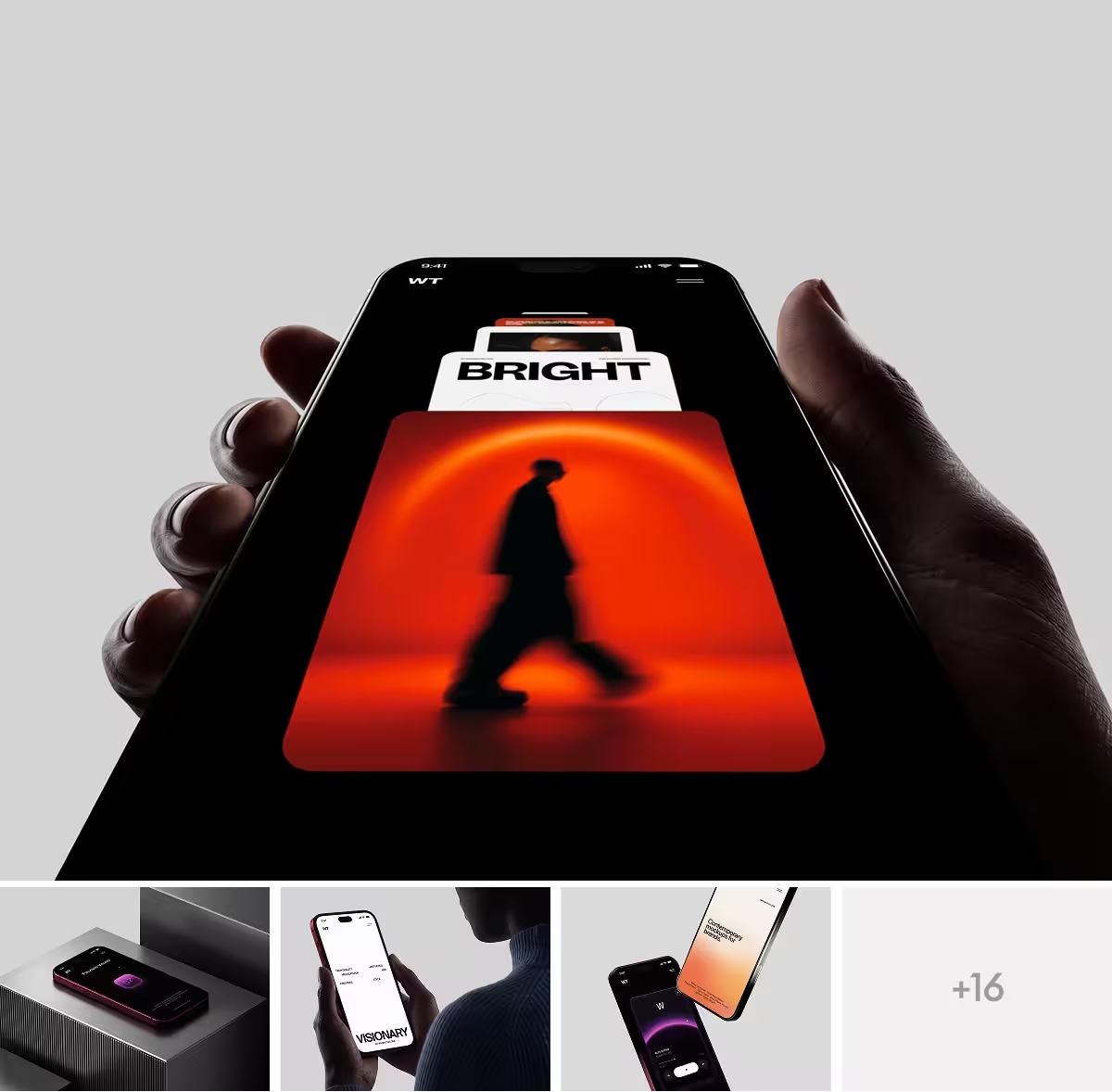



How to Use Mockups in Figma. Step-by-Step Guide.
If you design in Figma, you probably don't want to jump into Photoshop every time you need to show a screen inside a real phone or a logo on a real product. The good news is you don't have to. There are a few easy ways to build a mockup without ever leaving Figma, and once you know them, presenting your work takes minutes instead of an afternoon.
Below are the main methods, starting with the fastest one. Pick whichever fits how you like to work.
1. Method 1: The Wannathis mockups plugin (the fast way)
The quickest route is a plugin that brings a whole library of ready-made mockups right into your Figma file. You pick a scene, drop your design in, and it comes back onto your canvas fully rendered. Here it is step by step.
-
Open the plugin. In Figma, right-click and go to Plugins, search for Wannathis Mockups & 3D Illustrations, and run it. A panel opens with tabs for Mockups, Distort, Illustrations, and Find.
-
Pick a category. Use the Category dropdown to jump to what you need: Phone, MacBook, Desktop, Tablet, Print, or Billboard mockups. You can browse whole Packs or single Assets.
-
Choose a mockup. Open a pack, scroll the scenes, and click the one you like. Each mockup opens with a preview and the exact frame size it expects for your design, for example 2408 x 1564.
-
Fit your design. Select your design frame on the canvas, then use the plugin's Crop option so your artwork matches the mockup's screen size. This keeps everything sharp and correctly proportioned.
-
Drop your design in. Click the plus button on the mockup's screen to place your selected design into the scene. Give it a second to load and your work appears on the device, with the lighting and angle already handled.
-
Set the export size and add it. Choose your export resolution (up to 3680 x 2760), then hit Add to Figma. The finished mockup lands on your canvas as a normal layer you can move, resize, and export like anything else.
That's the whole thing. No smart objects, no leaving Figma, and no rebuilding the scene by hand.
One nice extra: the Distort tab lets you wrap a design onto an angled or curved surface, which is handy when a flat placement won't do.
2. Method 2: Download the Figma file and open it in Figma
You can also download a mockup as a ready-made Figma file and keep the whole scene as its own editable document. These files come with a handy "Paste here" frame and use the plugin's Distort feature to wrap your design onto the scene at the right angle
-
Download the Figma file. On the mockup page, click Download and pick the Figma format. Most mockups come in both Figma and Photoshop, though some are Photoshop only, so check the options.
-
Open it in Figma. The file opens as its own document, and Figma will ask which team or project to place it in. Pick a spot and it opens ready to edit.
-
Paste your design into the "Paste here" frame. Each scene comes with a "Paste here" frame sitting next to it. Drop your artwork into that frame.
-
Run the plugin and choose Distort. Open the Wannathis plugin (install it first if you haven't) and switch to the Distort tab.
-
Map your design onto the scene. Select the "Change this" layer inside the mockup, then select your "Paste here" frame. This tells the plugin what to place and where.
-
Preview and apply. Check the preview, rotate the direction if it needs it, and hit Apply. Your design wraps onto the scene with the correct perspective, and from there you can export it or reuse the file across your project.
Prefer not to download anything at all? Many mockups also have an Edit online button that lets you customize them right on the site, which we'll cover in a moment.

3. Method 3: Build a quick one yourself with image fill and crop
For a simple device shot, you can make a basic mockup with Figma's own tools, no downloads needed.
Drop in a photo or frame of the device, draw a shape exactly over the screen area, and set your design as its image fill. Switch the fill to Crop so you can position it neatly inside the screen. If you'd rather not do it by hand, a free plugin like Easy Mockup does the same thing in a couple of clicks: you pick the area to fill, choose your design as the source, and it wraps your screen into a simple device frame.
Either way it won't have the polish of a purpose-built scene, since matching real lighting and perspective is tricky, but it's perfectly fine for a fast internal preview or a rough idea.

4. Which method should you use?
If you want speed and quality together, the plugin is hard to beat, since it lives inside Figma and does the hard part for you. If you like keeping reusable scenes in your file, go with a mockup component. And if you're just sketching something rough for yourself, the built-in image fill trick is enough. Most designers end up using a mix depending on the moment.

5. Where to get mockups for Figma
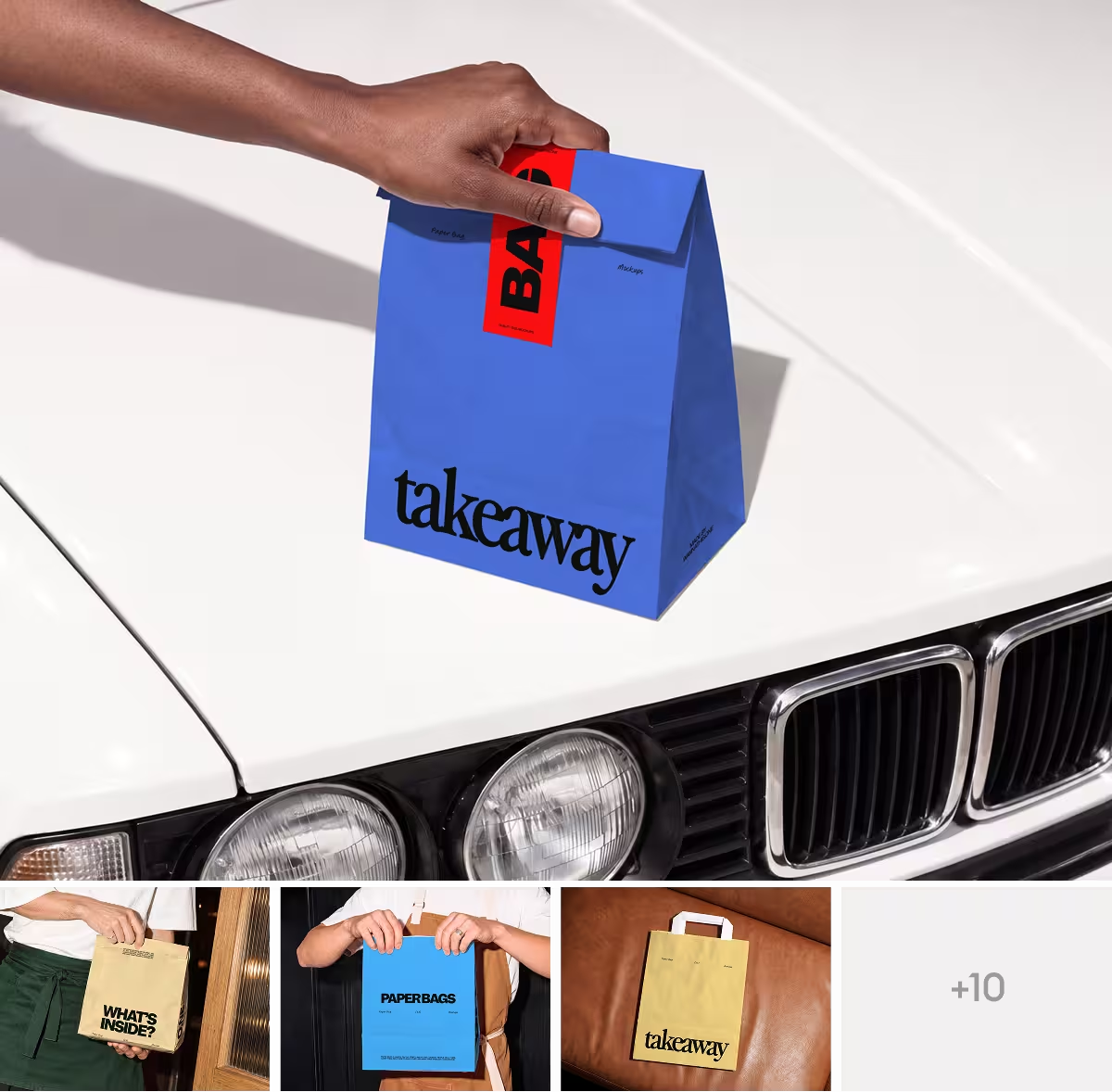
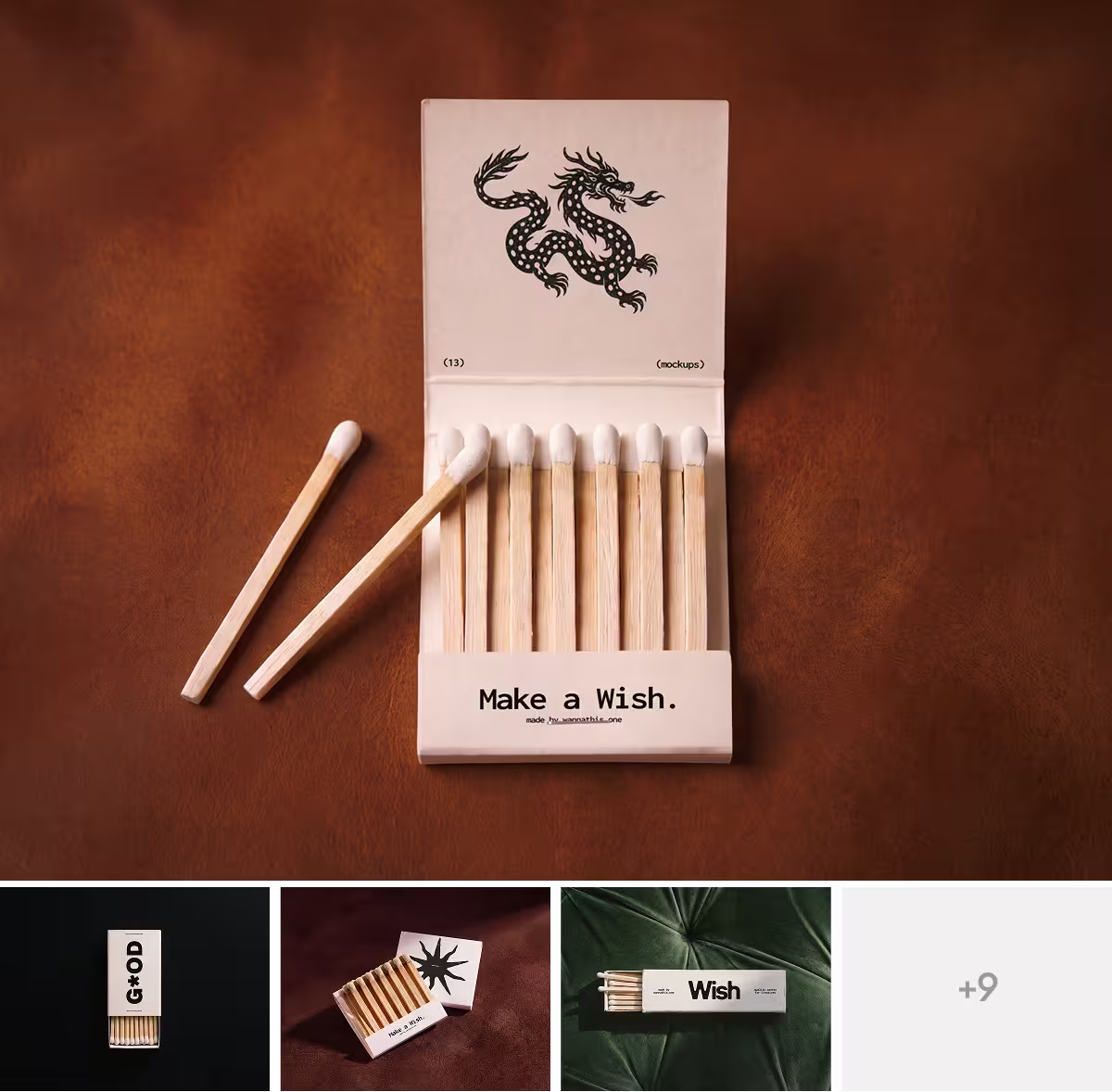
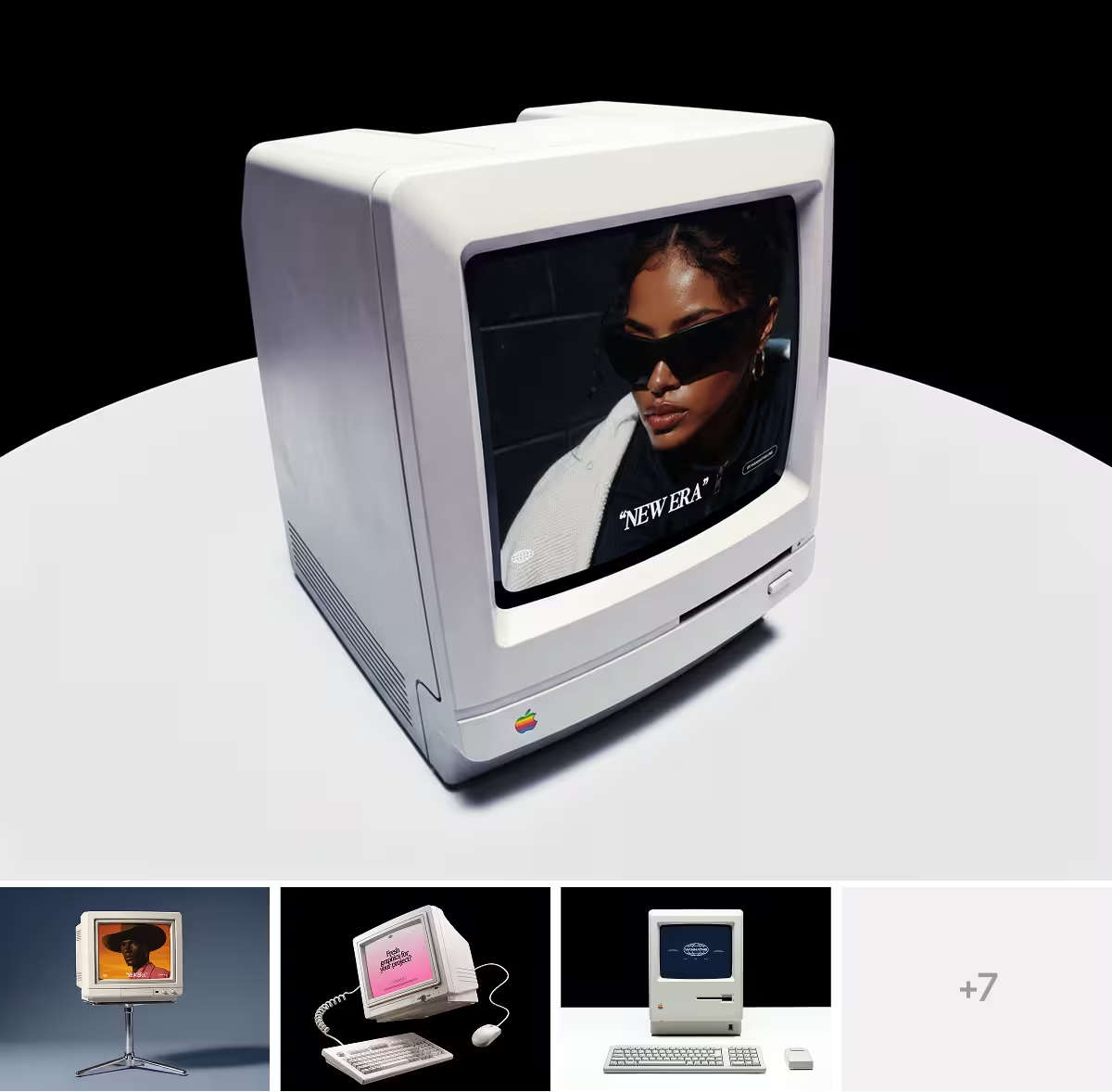
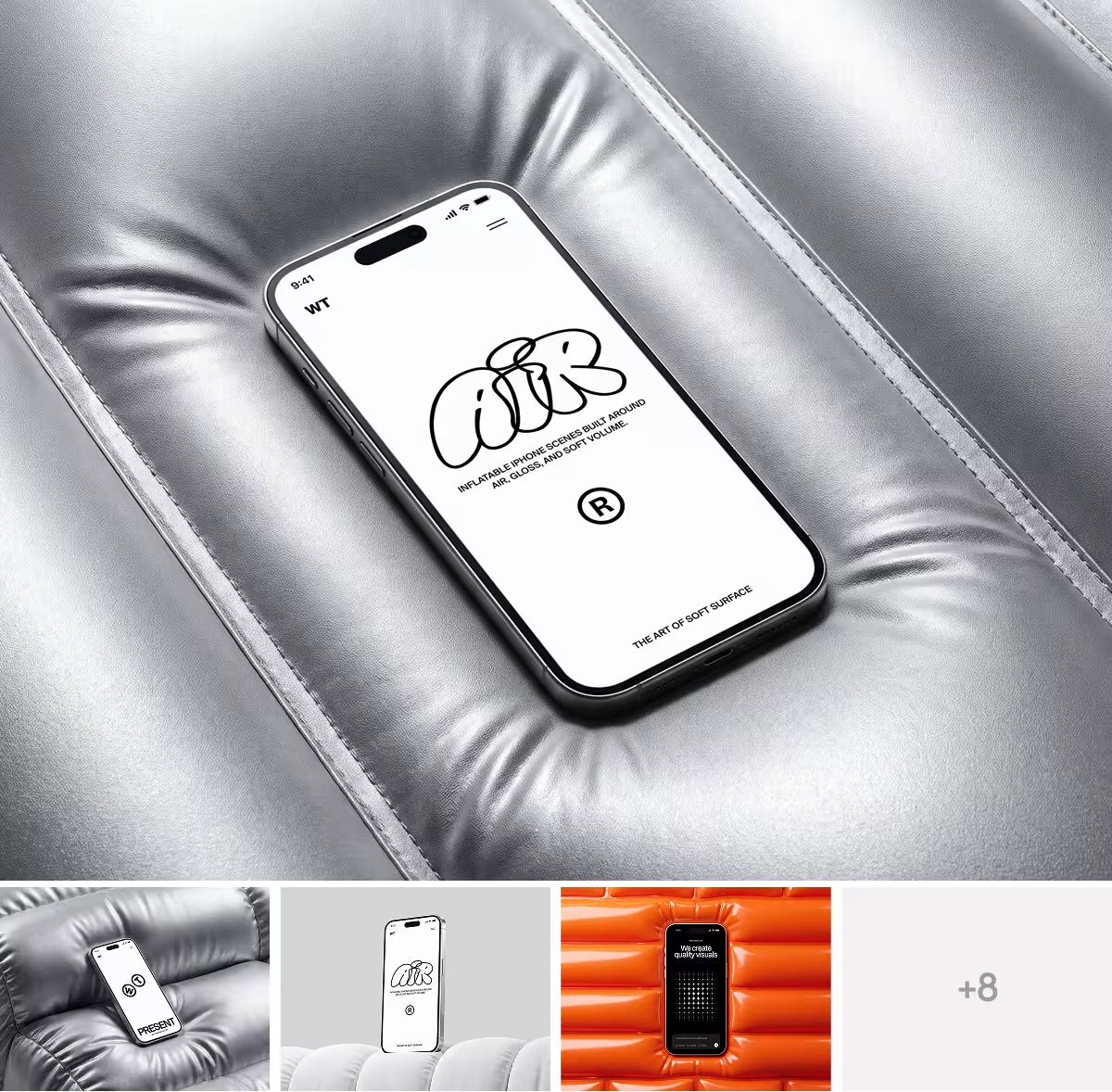
You can start for free. There's a set of free mockups to test the workflow, and the full mockup catalog covers phones, laptops, tablets, desktops, and branding items like business cards, packaging, and billboards. Many come as editable Figma files and work with the plugin, while others are Photoshop only, so check the format on the page before you download.
For more on making those mockups actually sell your work, have a look at our guide on presenting your designs like a pro.

Frequently asked questions
How do I add a mockup in Figma? The fastest way is a mockup plugin: run it, pick a scene, drop your design onto the screen, and add it to your canvas. You can also copy a mockup component into your file and place your design in its screen layer.
Can I use mockups in Figma for free? Yes. There are free mockups you can use to try the process, plus premium ones that add more scenes, higher resolution, and extra control.
Do I need Photoshop to make a mockup? No. You can do the whole thing inside Figma, either with a plugin, a ready-made Figma file, or Figma's own image fill and crop tools.
What size should my design be? Match the frame size the mockup asks for. Good mockups tell you the exact screen size to use, so your design stays sharp and lines up correctly.
Recent articles

Fonts That Already Look Like a Logo

Best Framer portfolio templates 2026


