




What is a mockup?
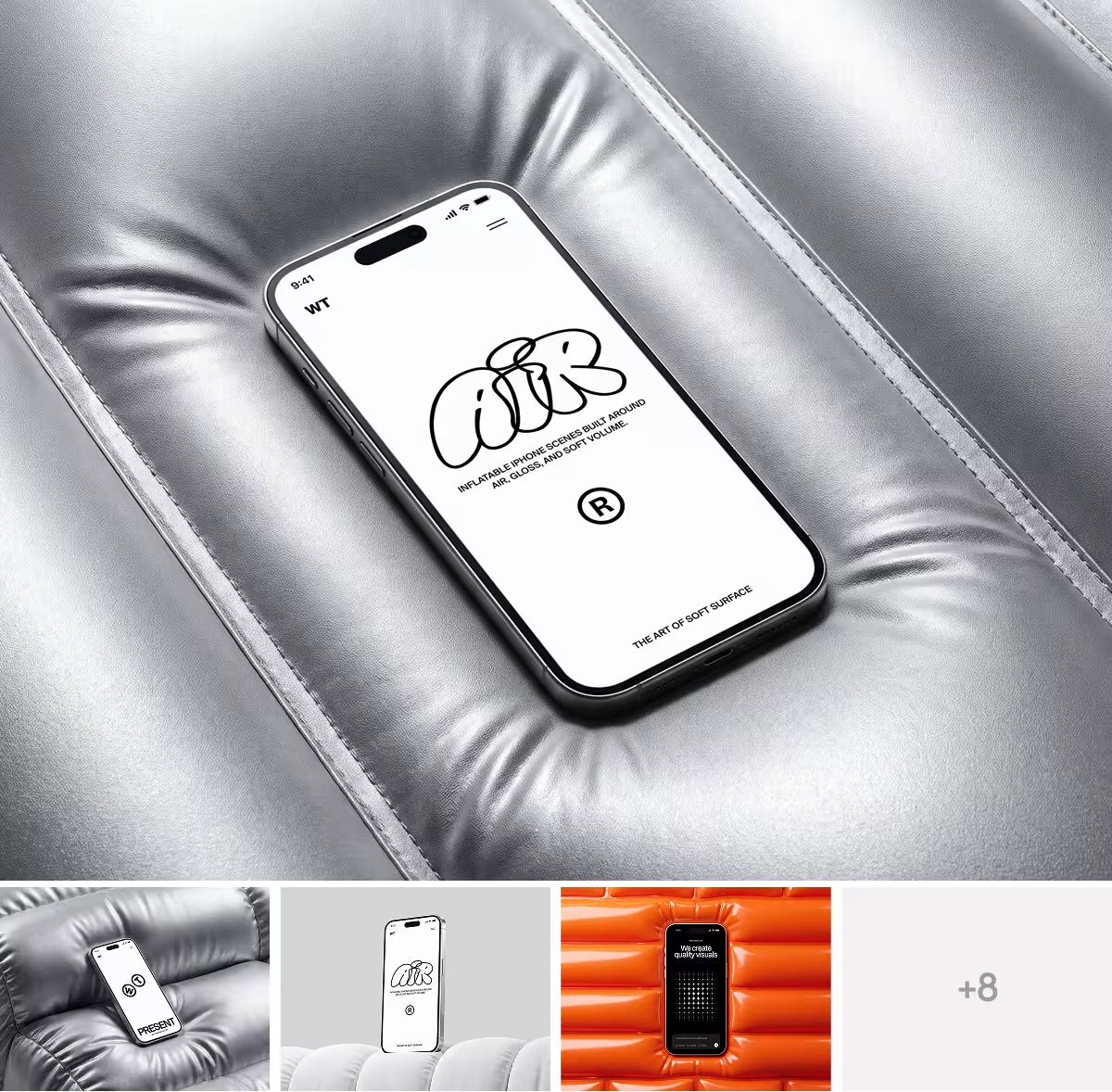
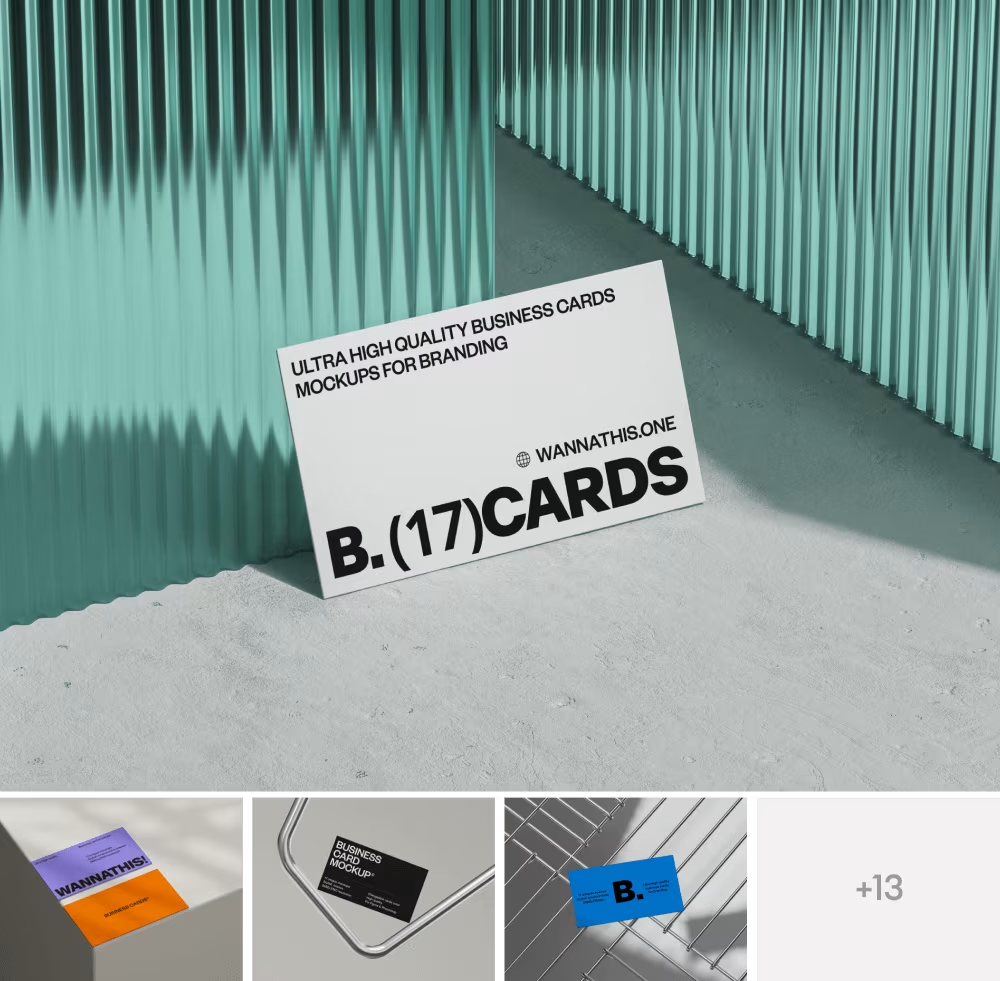
A mockup is a realistic, detailed image that shows how a design will look in the real world. It takes your artwork and places it on an actual product or surface, like a phone screen, a business card, a t-shirt, or a billboard, so you can see the finished thing instead of just the file.
That's the textbook answer, and it's the one you'll find everywhere. But if you actually work with mockups, the interesting question isn't "what is a mockup," it's "why do some make your work look like a million dollars while others make it look like a stock template from 2012." So we'll cover the definition quickly, then get into the part almost nobody explains: what separates a good mockup from a cheap-looking one, and how to actually use them well.
1. Mockup meaning, quickly
Outside design, a "mock-up" is a full-size model of something built to preview it before the real version exists, like a clay mock-up of a car. Design borrowed the idea. A mockup is a preview of the finished thing, made so people can react before anything is final.
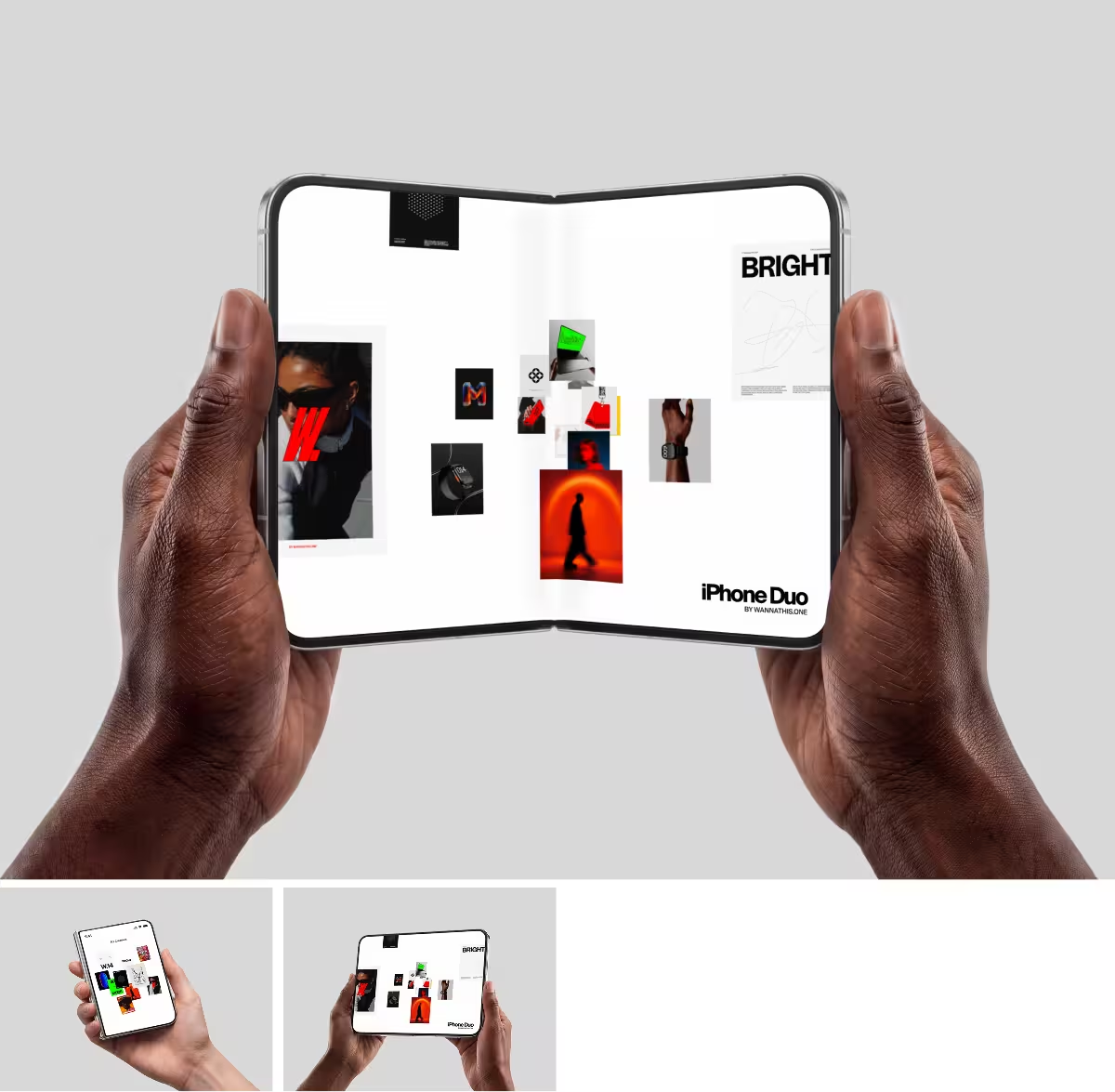
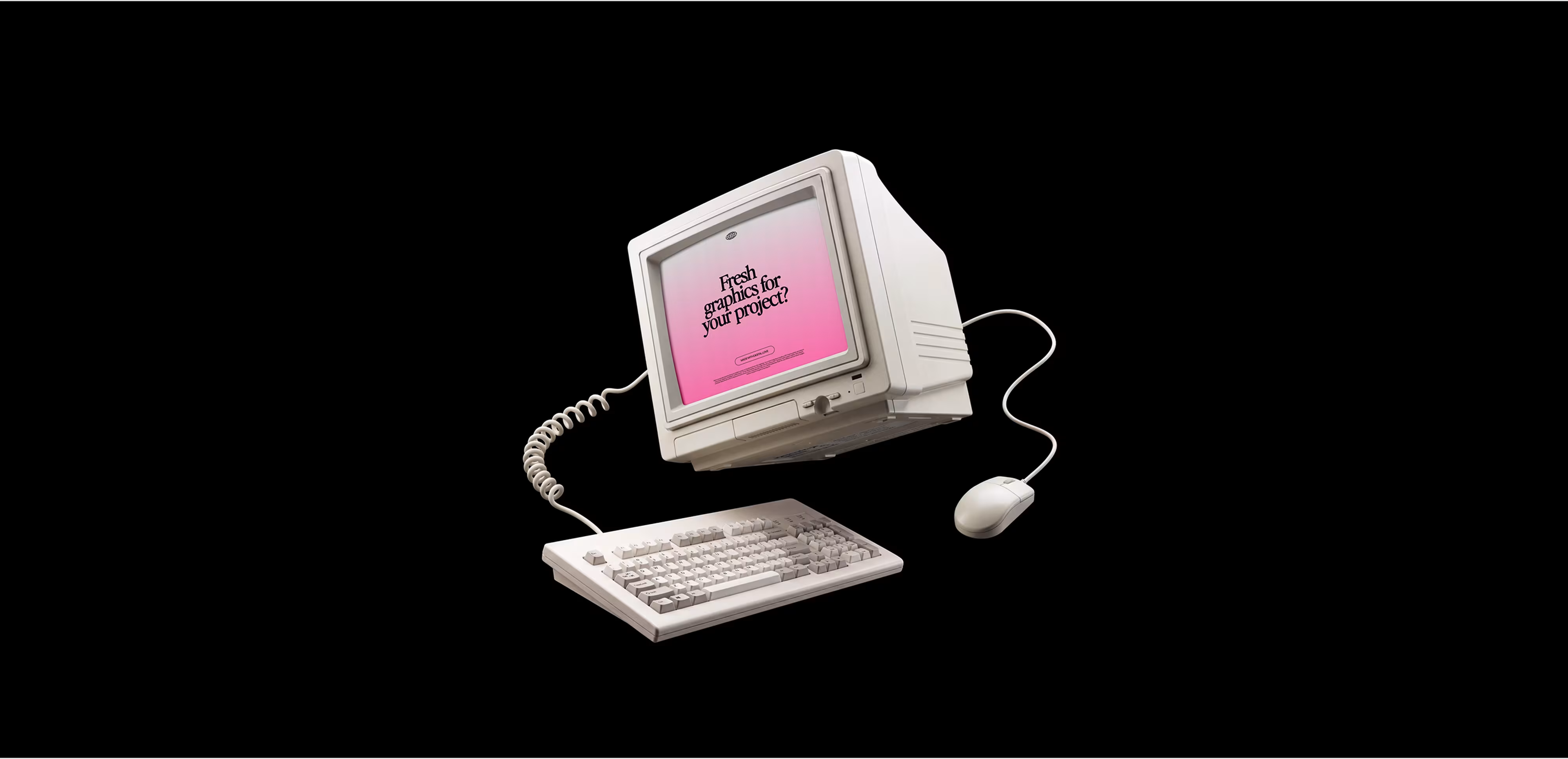
In practice the word covers two things. There's the design-process mockup, a static high-fidelity version of a screen that shows the real colors, type, and layout before it's built. And there's the presentation mockup, a ready-made template where you drop your finished design onto a realistic object, like your app inside a real iPhone or your logo on an actual tote bag. This second kind is what most people mean when they're showing off finished work, and it's what the rest of this guide is about.

2. What actually makes a mockup look good
Here's the thing nobody tells you: a mockup can quietly ruin great work, or make average work look sharp. The difference comes down to a handful of realism cues your eye notices even when your brain doesn't.
Lighting and shadows that agree with each other. If your design sits on a surface but casts no shadow, or the shadow falls the wrong way, the whole thing reads as fake instantly. Good mockups have soft, consistent lighting and shadows that match the scene's light source.
Real perspective and warp. When artwork goes onto an angled phone or a curved coffee cup, it has to bend and foreshorten with the surface. A flat design pasted onto an angled object is the number-one giveaway of a lazy mockup.
Surface texture coming through. Paper has grain, fabric has weave, screens have a subtle glare. The best mockups let a little of that texture sit on top of your artwork so it looks printed or displayed, not floated on.
Enough resolution to breathe. A mockup that looks crisp in a thumbnail can fall apart the moment someone views it full-size. Premium mockups are built at high resolution so your work stays sharp everywhere it's seen.
Once you start noticing these four things, you can't unsee them, and picking mockups gets a lot easier.

3. Types of mockups
Mockups come in almost as many forms as the things designers make. The most common categories are:
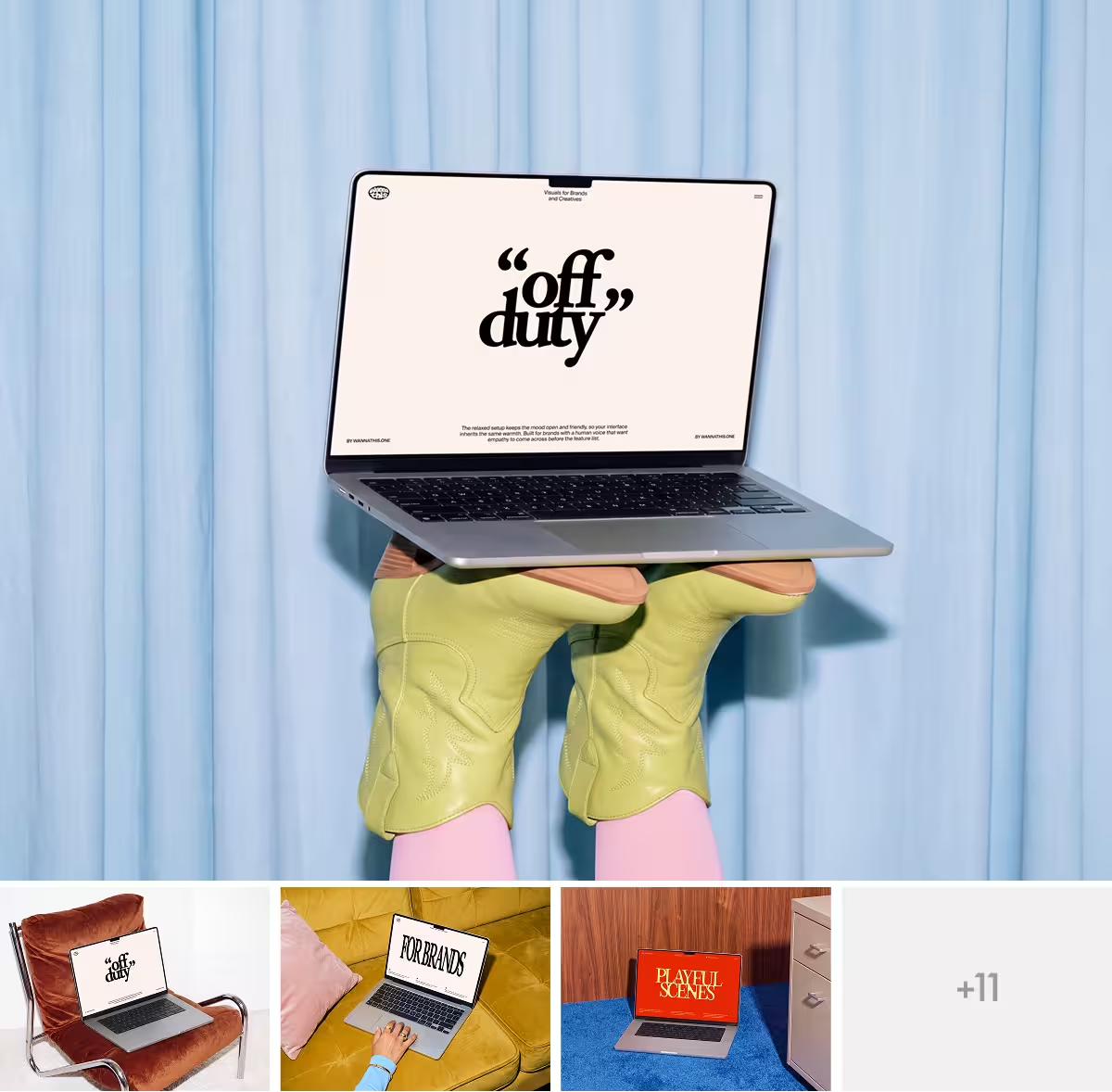
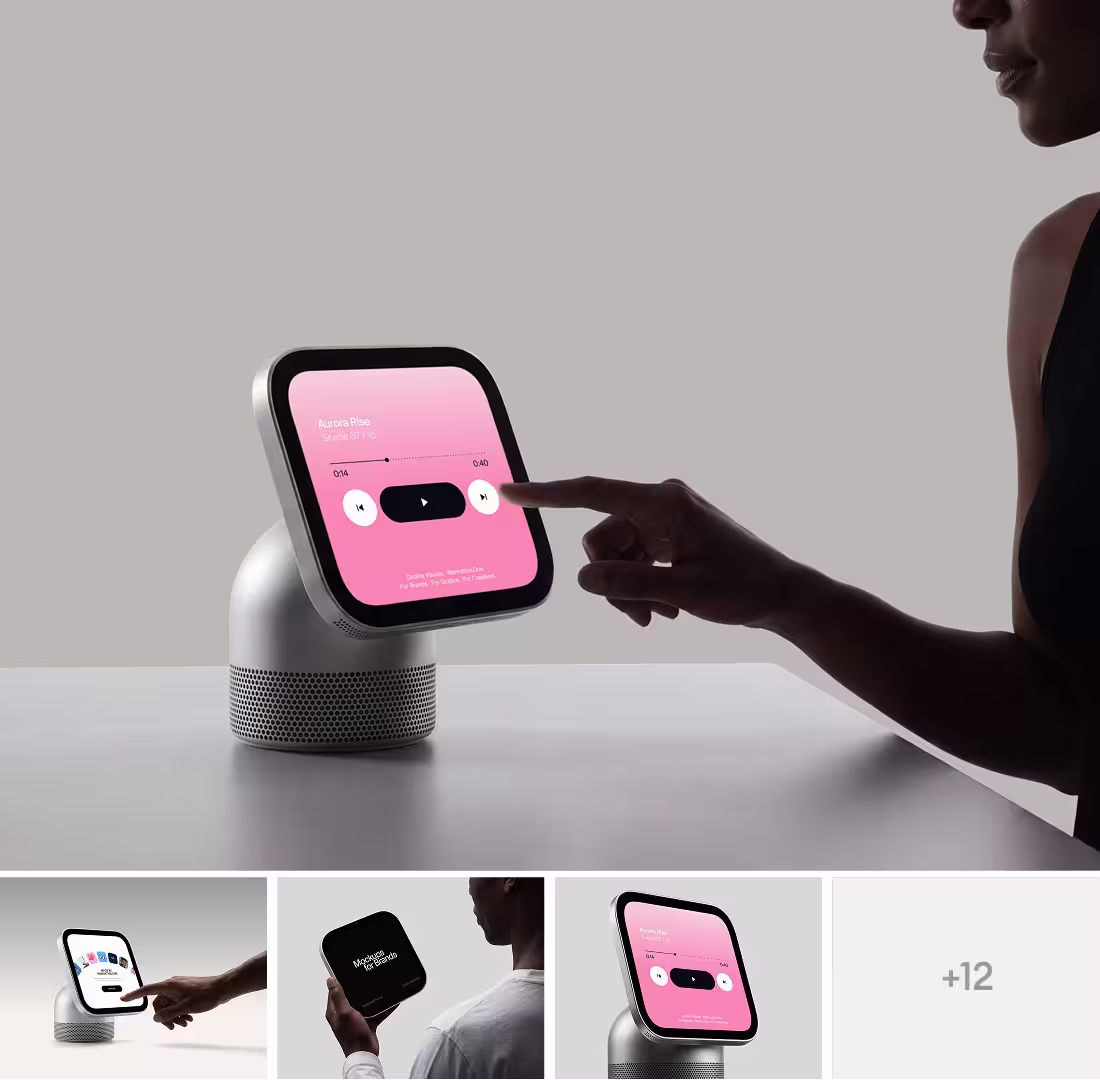
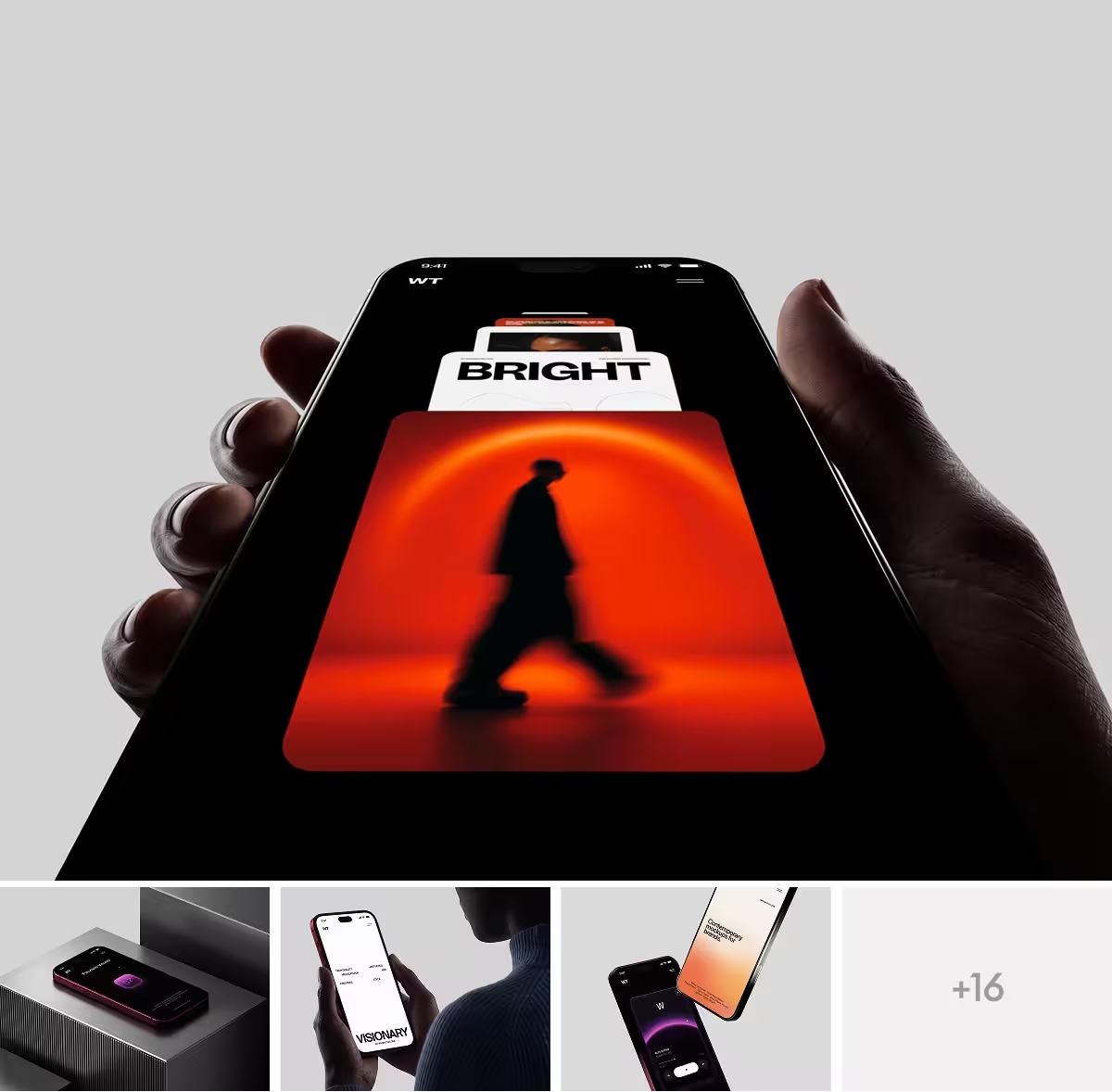
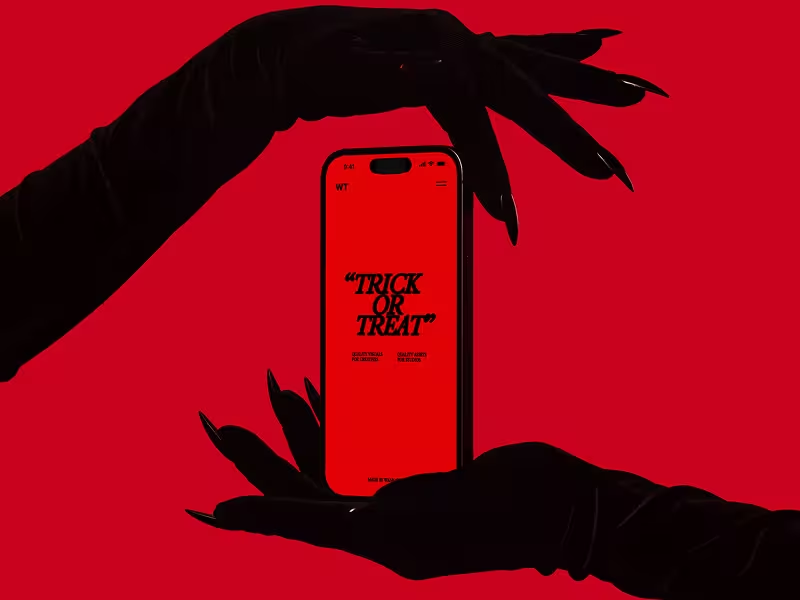
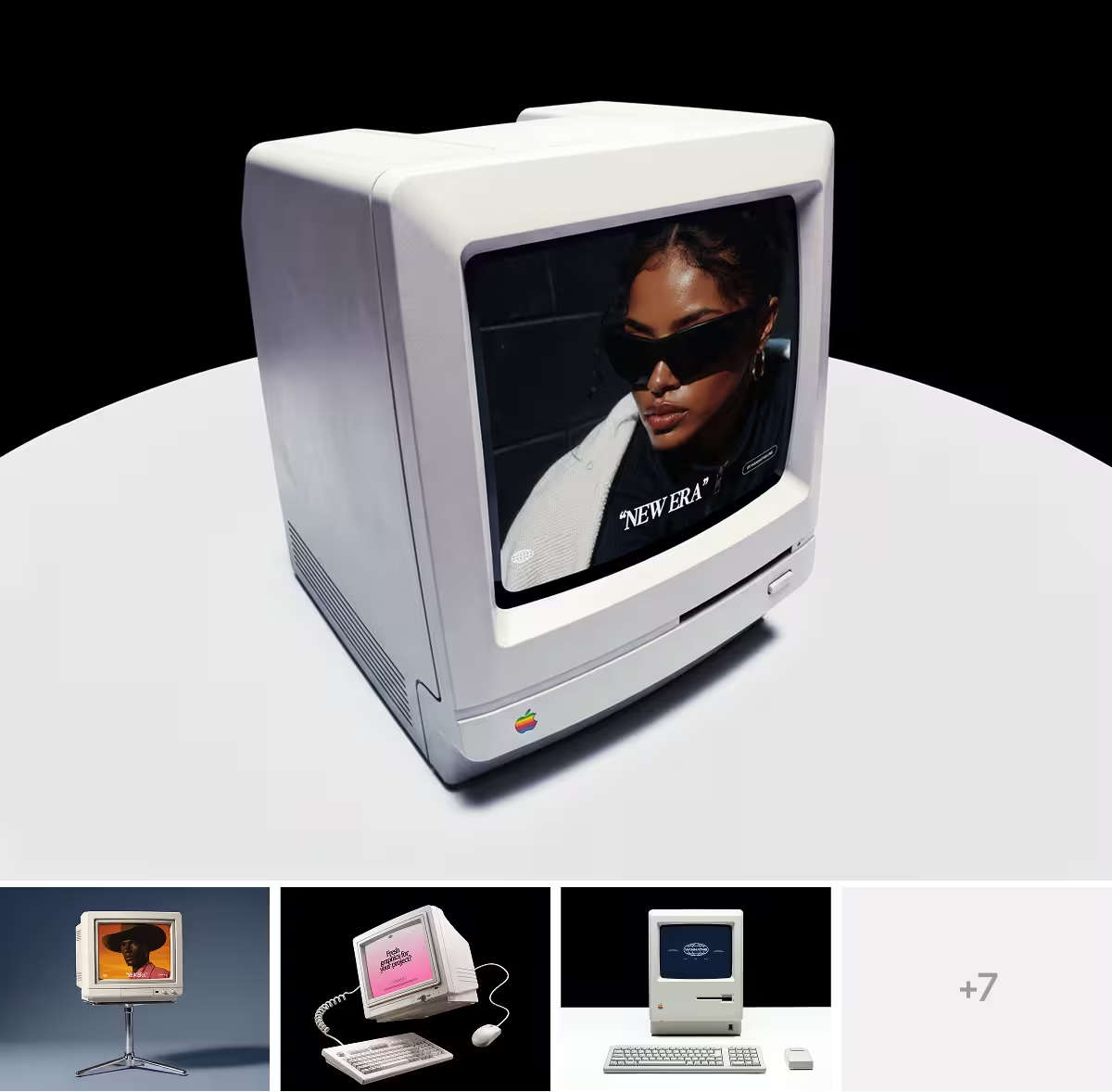
Device mockups, which place a screen design onto real hardware. These include iPhone mockups, MacBook mockups, iPad mockups, and desktop screens, all grouped under device mockups.
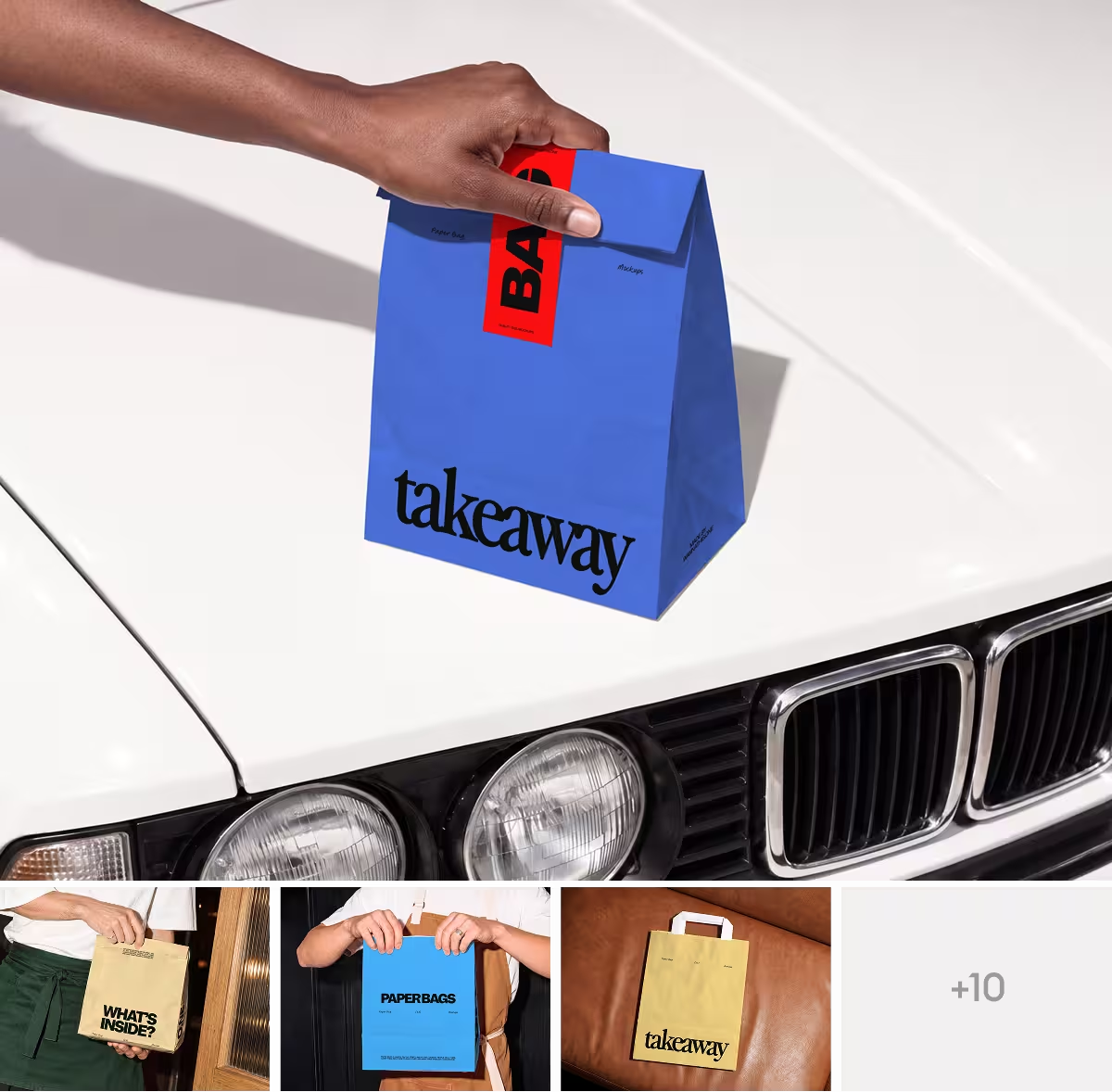
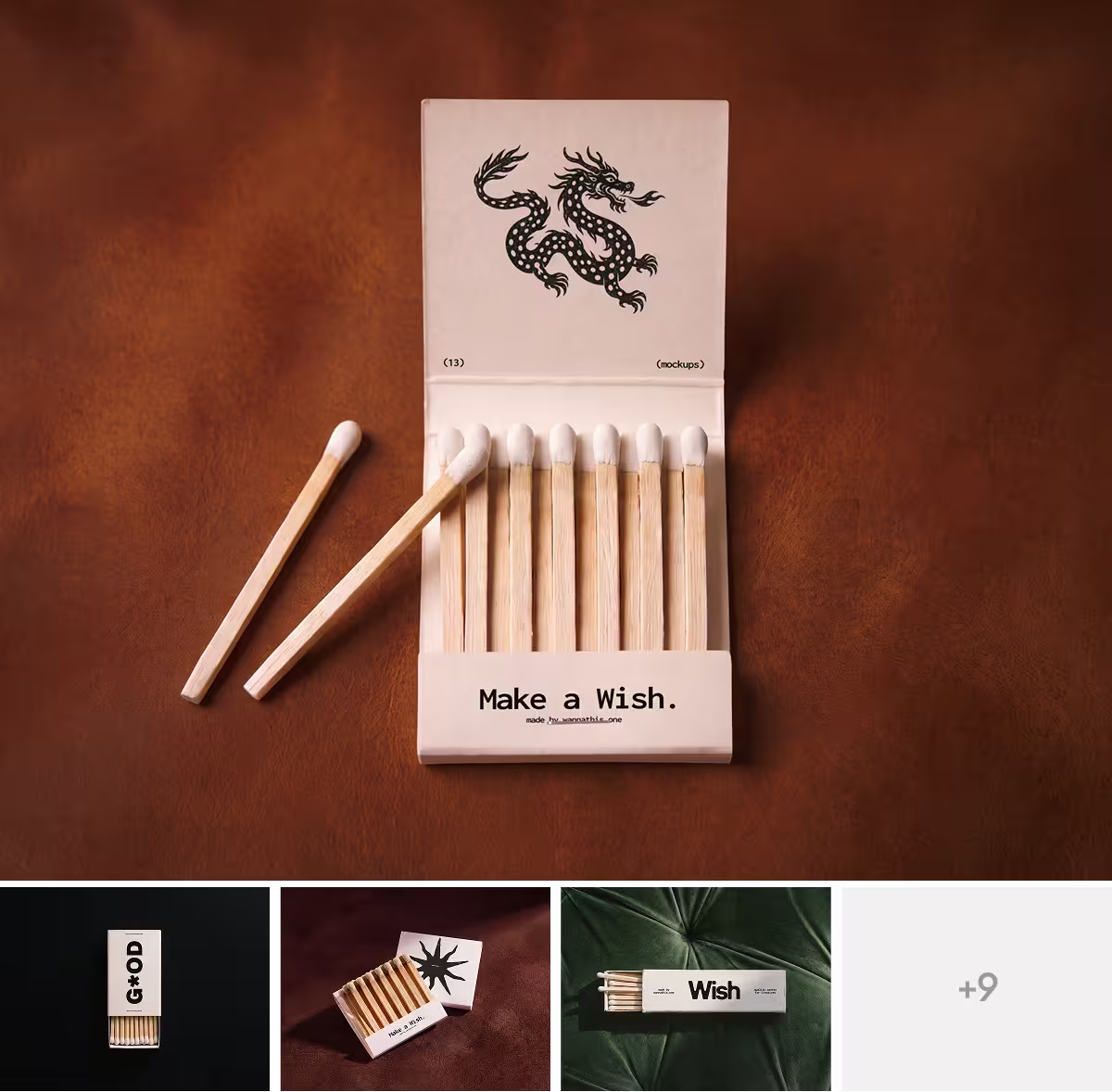
Branding mockups, which show identity work in the real world, like business cards, packaging, tote bags, apparel, and signage.
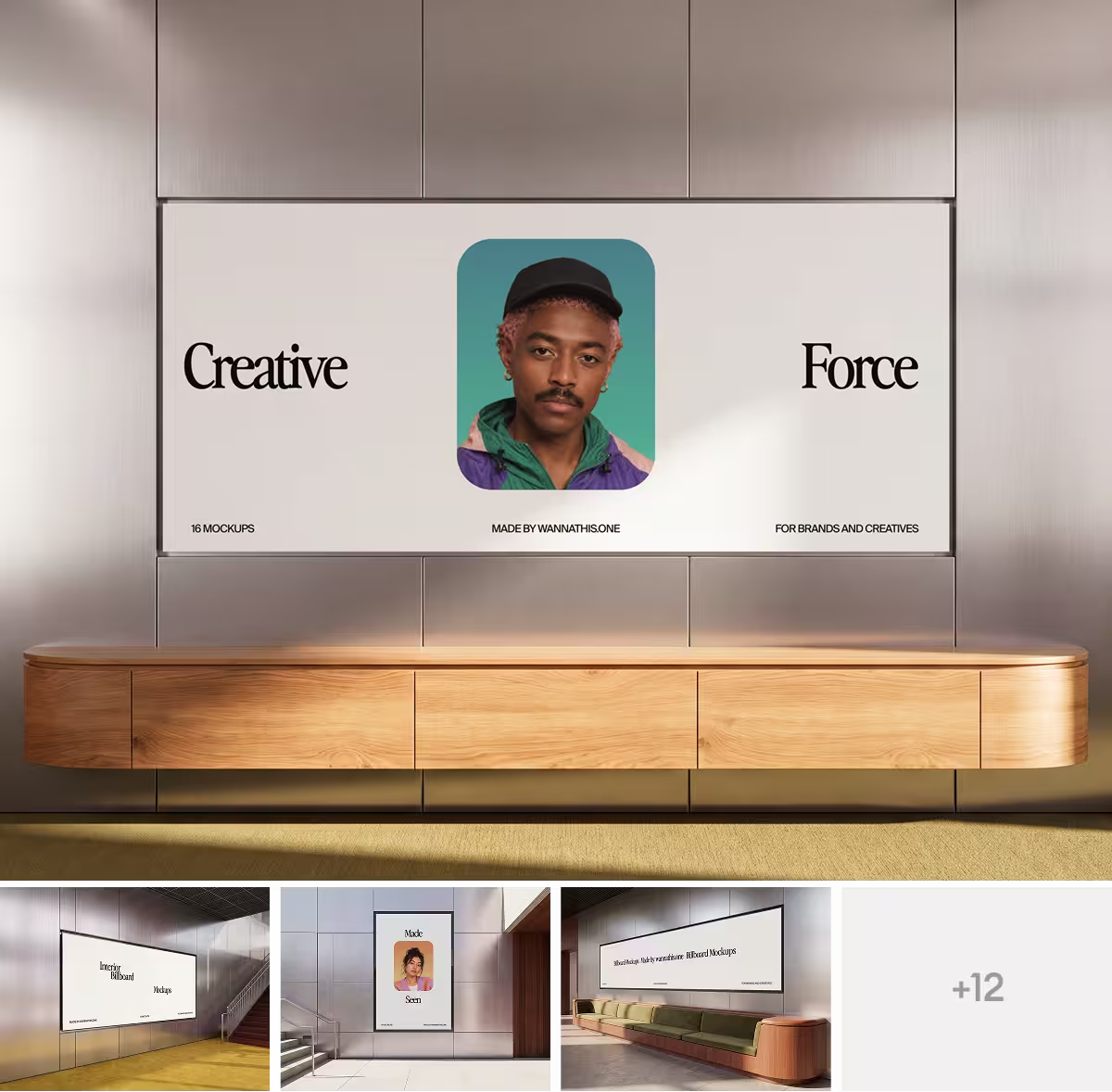
Print mockups and billboard mockups, for posters, flyers, magazines, and large-format outdoor advertising.
Whatever you're designing, there's almost certainly a mockup type made to present it, and you can browse them all in our mockup catalog.
4. Mockup vs wireframe vs prototype
These three get mixed up constantly, but the difference is simple once you line them up. They're really three stages of the same journey, from rough idea to something that looks and behaves like the finished product.
A wireframe is the bare structural skeleton of a layout. It's low-fidelity, has no color or styling, and isn't interactive. Its job is to answer "where does everything go."
A mockup is the high-fidelity visual on top of that structure. It shows the real colors, type, and imagery, so it answers "what does it look like," but it's still a static image you can't click through.
A prototype is the interactive version. It's high-fidelity and clickable, simulating how the product actually behaves, so it answers "how does it feel to use."
You often move through all three in that exact order: wireframe first, then mockup, then prototype.

5. How to actually use a mockup
Most mockups are built so you don't have to rebuild the scene, you just swap in your design. There are three common ways to do it.
In Photoshop, mockups use smart objects. You double-click the smart object layer, paste your design inside, save, and it maps onto the scene with all the lighting and warp already applied.
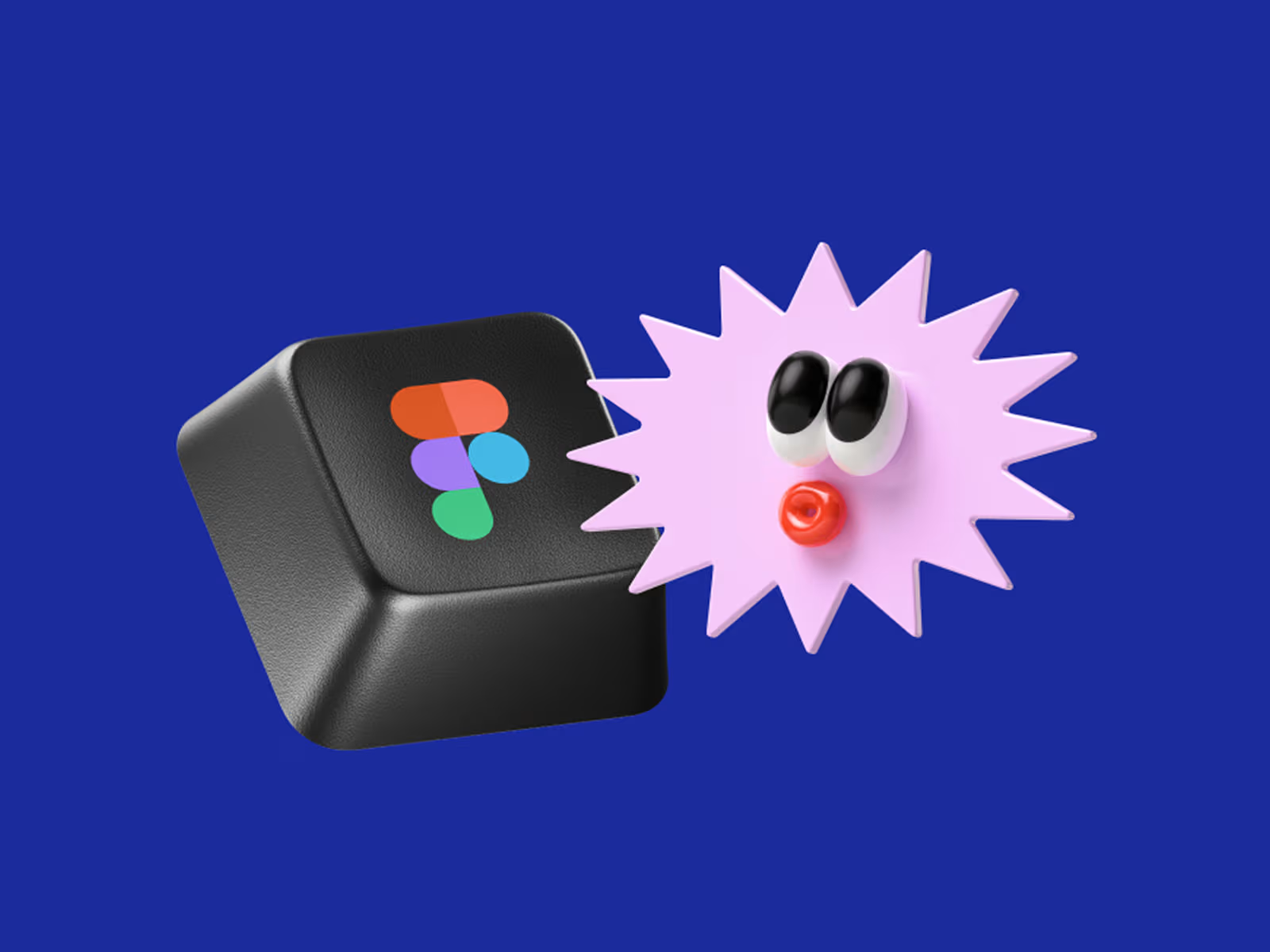
In Figma, you drop your design into a frame or component and it updates in place, which is why a lot of designers now stay in Figma end to end. You can even pull mockups straight into your file with the Wannathis Figma plugin.
And increasingly there's a third option: browser tools that need no Photoshop or Figma at all. With Mockup Online you upload your design, pick a scene, and export, which is ideal when you just need a quick, clean shot without opening a heavy file.

6. Static isn't the only option anymore
Mockups used to mean a single still image. Now motion is quietly becoming the standard, especially for social, portfolios, and product launches, because a design that moves stops the scroll in a way a static image can't. That's why we make animated mockups, scenes where your design comes to life with subtle motion.
The nice part is they work just like a normal mockup: you swap in your design, and the movement is already built into the scene. If you've been exporting flat PNGs for every presentation, dropping in an animated mockup instead is one of the easiest ways to make your work feel a step ahead.
7. Where to get mockups
You can build your own from scratch, but most designers use ready-made templates to save time. If you want to try a few first, there's a solid set of our free mockups to start with, and the full mockup catalog covers just about every device, product, and surface you might need. Most come as editable Figma and Photoshop files, so dropping your design in takes a couple of minutes.

Frequently asked questions
What is a mockup in simple terms? It's a realistic preview of a design, showing your work placed on a real product or surface so you can see how it will actually look.
What is the difference between a mockup and a prototype? A mockup is a static visual that shows how a design looks. A prototype is interactive and shows how it works, letting you click through and test the experience.
What is the difference between a mockup and a wireframe? A wireframe is a rough, unstyled layout that shows structure. A mockup is the high-fidelity version that adds real colors, type, and imagery.
Are mockups free? Some are. There are plenty of free mockups available, alongside premium ones that offer more scenes, higher quality, and more control.
What file formats do mockups come in? Most commonly Figma and Photoshop (PSD) files, which use smart objects or layers so you can swap in your own design without redoing the scene.
Recent articles

Best Framer portfolio templates 2026

Color Trends 2026 for Designers and Brands


